Tuesday, March 8, 2016

How to Install Oracle Data Integrator (12.1.3.0.0) - ODI - Windows???

First we need to install JDK latest version, I installed jdk1.8.0_73. You can find the latest version from below link
Now download Oracle Data  12.1.3.0.0. You can download from "Oracle Software Delivery Cloud" @ https://edelivery.oracle.com/ (You should have Oracle support ID and its password)
Choose Product and Platform and press "Continue"
 Choose "Oracle Fusion Middleware 12c (12.1.3.0.0) Data Integrator" and click "Continue"
Choose corresponding ZIP file and click on "Download All"
Set environmental variable JAVA_HOME and then execute below command. If JAVA_HOME not configured you have to go to the location where JAVA is located. From there you have to execute command as shown in below screenshot.
Welcome, Click "Next"
Determine the Oracle ODI location, Click "Next"
Installation type, Choose Standalone Installation or Enterprise Installation according to your needs, Click "Next"
Prerequisite Checks, Click "Next". All Prerequisite Checks should Pass
Installation Summary, Click "Install"
 Installation Progress, Click "Next"
 Installation completed, Click "Finish"

How to install WebLogic Server (12.1.3.0.0 ) ???

First we need to install JDK latest version, I installed jdk1.8.0_73. You can find the latest version from below link
Now download WebLogic Server 12.1.3.0.0. You can download from "Oracle Software Delivery Cloud" @ https://edelivery.oracle.com/ (You should have Oracle support ID and its password)
Choose Product and Platform and press "Continue"
Choose "Oracle Fusion Middleware 12c (12.1.3.0.0) Infrastructure" and click "Continue"
Choose corresponding ZIP file and click on "Download All"
Set environmental variable JAVA_HOME and then execute below command. If JAVA_HOME not configured you have to go to the location where JAVA is located. From there you have to execute command as shown in below screenshot.
Installer will do some necessary check likes CPU, Monitor, Swap etc. If everything looks good then Oracle Universal Installer will start 
Welcome Page, Click "Next"
 Determine the Oracle (Middleware) Home, Click "Next"
 Choose "Fusion Middleware Infrastructure" and click "Next"
 All check must be successful. Click "Next"
 Installation summary, Click "Install"
 Installation Progress, Click "Next"
 Installation Completed, Click "Finish"
 Check WebLogic Server Installation

Monday, March 7, 2016

How to install Oracle 12c on Windows??

The first thing you need to do is unzip the two zip files into a common directory. I’ve chosen to create an "12_1" folder. Oracle creates a database folder inside it. Within the database folder, click the Setup file as Administrator to launch the Oracle Installer.

After launching the Oracle Installer, the Configure Security Updates screen is your first stop. You may provide your email (attached to your Oracle Support Contract) and Oracle Support password, or uncheck the box and you can simply install a Desktop test environment. Click the Next button to proceed. 


The Installation Option screen lets you chose whether you want to Create and configure a database (sample database), Install database software only, or Upgrade an existing database. Check the appropriate radio button and then click the Next button to proceed with the install.
The System Class screen lets you chose whether you want to install a Desktop class (ideal for developers to play around in) or a Server class. Check the appropriate radio button and then click the Next button to proceed with the install. 
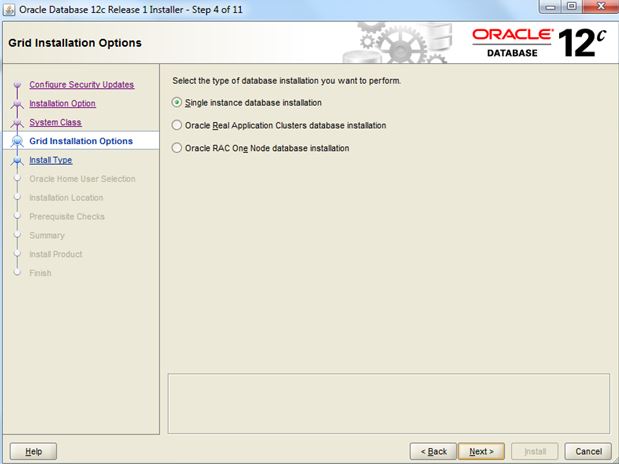
The Grid Installation Options screen lets you choose type of database installation you want to perform. Check appropriate button to proceed with the installation.
The Select Install Type screen lets you choose whatever you want to use Typical Install or Advanced Install. Check the appropriate button and click the next button to proceed with the install.
The Oracle Home User Selection screen lets you chose whether you want to Use Existing Windows User (that’s fine if you created one previously), Create New Windows User (what I’ll do next), or Use Windows Built-in Account. Check the appropriate radio button and then click the Next button to proceed with the install.

The Typical Install Configuration screen lets you customize your installation. I’ve only opted to provide an Oracle compliant password while accepting the defaults. Click the Next button to proceed with the install. 
The Perform Prerequisite Checks screen initially displays a task bar. You need some patience, it’ll show you the next screen if everything is fine. 
The Summary screen tells you what you’re going to install. Read it over, save a copy for later, and when everything is right then click the Next button to install. 
The Install Product screen tells you what you’re installing and it can take some time. Don’t walk away too quickly because you’re most likely going to have to allow access for the installation to complete successfully.
You should see two Windows Security Alerts with the installation. Click the Allow access button to continue successfully.
The Database Configuration Assistant screen tells you that you’ve been successful to this point. 
The second Database Configuration Assistant screen lets you configure passwords for the database accounts. I’m skipping that by accepting the defaults and clicking the OK button to proceed. 
The Finish screen appears after everything has worked. Click the Close button to finish the install.
Now, you can open a Windows command shell and call the sqlplus executable. Try connecting using system and type password. 
You should see the following in the command shell when the installation was successful.

Thursday, March 3, 2016

How to fix missing files during 12c database installation?

There will be 2 ZIP files in Oracle 12c database software
- We have to unzip both zip files in to one folder.
- The common misunderstanding is keeping 1of2 and 2of2 in same folder
- If we are not unzipping both zip files in one directory and started setup we see below file missing error during installation.

To avoid this issue
- Abort installation
- open V47115-01_2of2 file and copy all directories under 
C:\V47115-01_2of2.zip\database\stage\Components
Paste into C:\V47115-01_1of2.zip\database\stage\Components
Now run setup.exe as administrator. You should finish the installation successfully!!!

Wednesday, March 2, 2016

How to Solve ORA-04031 with Oracle Support Provided Tool???

What is ORA-04031 and why?

ORA-04031 is error message related to lack of available SGA memory component. When a process needs some memory from SGA and memory is not available in this situation ORA-04031 occurs.

ORA-04031 message look like in DB Alert log file

Steps to solve ORA-04031 error with Oracle support tool
Database admins can easily solve this error by re-sizing SGA but the solution would be temporary. To get accurate solution use Oracle support "ORA-4031 Troubleshooting Tool".
How to use ORA-4031 Troubleshooting Tool
1) Login to the Oracle Support (support.oracle.com) and search for "Tools and Training Documents" in Knowledge tab. Click on "Tools and Training Documents"
2) Search for "Diagnostics Tools Catalog"


3) Look for "ORA-4031 Troubleshooting Tools"
4) ORA-4031 Troubleshooting Tools page looks like as below
It has four options

  • Troubleshoot a new issue
  • Review a troubleshooting report
  • Upload new files and re-run a troubleshooting report
  • Upload new files and re-run a troubleshooting report


5) Upload trace and alert log files
6) After upload you will get Oracle Recommended Solution. Below is the full report.

7) If recommended solution doesn't work, you can always create a Service Request from this tool itself

How to Create TEMPORARY tablespace and drop existing temporary tablespace in oracle 11g/12c

1. Create Temporary Tablespace Temp create temporary tablespace temp2 tempfile '/mnt/mnt04/oradata/temp01.dbf'size 2000M;  2. Move D...